Imagine your business is a giant, messy filing cabinet. Right now, every time you buy a coffee for a client, pay your rent, or receive a payment, you are basically shoving receipts into one big drawer labeled “Money Stuff.”
By the end of the year, that drawer is overflowing. When your tax preparer asks how much you spent on marketing, or you try to figure out if you actually made a profit last month, you are digging through the whole pile, stressed and guessing. If QuickBooks makes you feel like you’re always one wrong click away from messing it up, your COA is usually the reason.
In QuickBooks Online, the Chart of Accounts (COA) is what prevents that mess. Think of your COA as the labeled folders inside the filing cabinet. Instead of one giant “Money Stuff” drawer, you have organized categories like Advertising, Rent, Software Subscriptions, Sales, and Bank Accounts. When transactions come in through the Banking feed, QuickBooks uses these accounts to file each transaction in the right place so your reports make sense.
In this post, we’ll cover what a Chart of Accounts is, how it connects to QuickBooks reports, and how to set yours up so you stop asking, “Where did the money go?”
What Is a Chart of Accounts in QuickBooks?
A Chart of Accounts (COA) in QuickBooks is a master index of all the financial accounts your business uses to categorize transactions. It acts as the backbone of your accounting system, automatically sorting every transaction into five main categories: Assets, Liabilities, Equity, Income, and Expenses, so you can generate accurate financial reports.
- What you own (like bank accounts and invoices you have not been paid for yet)
- What you owe (like credit cards, loans, sales tax payable)
- What you earn (income accounts)
- What you spend (expense accounts)
QuickBooks uses this list to build your two most important reports:
- Profit and Loss: Income minus Expenses equals Profit
- Balance Sheet: Assets, Liabilities, Equity
No clean Chart of Accounts means messy reports.
Why It Matters (In Real-Life Terms)
A well-set-up COA in QuickBooks helps you:
- Categorize transactions quickly, especially from the Banking feed
- Track spending and income by category, so you can spot trends
- Make tax time easier, because clear categories mean fewer cleanup hours
It helps you answer real business questions, like:
- “How much did I spend on advertising last quarter?”
- “Are software costs creeping up?”
- “Did I actually profit last month, or did I only collect cash?”
A clean Chart of Accounts is the first step in a stress-free close. Once your categories are set, use our Month-End Close Checklist to finish your books in record time.
Our take: At Accountix, our outsourced accounting services team believes your Chart of Accounts is the difference between QuickBooks feeling clear or confusing. Build it around the questions you actually want to answer, and the rest gets easier.
The 5 Main Account Types (The Buckets)
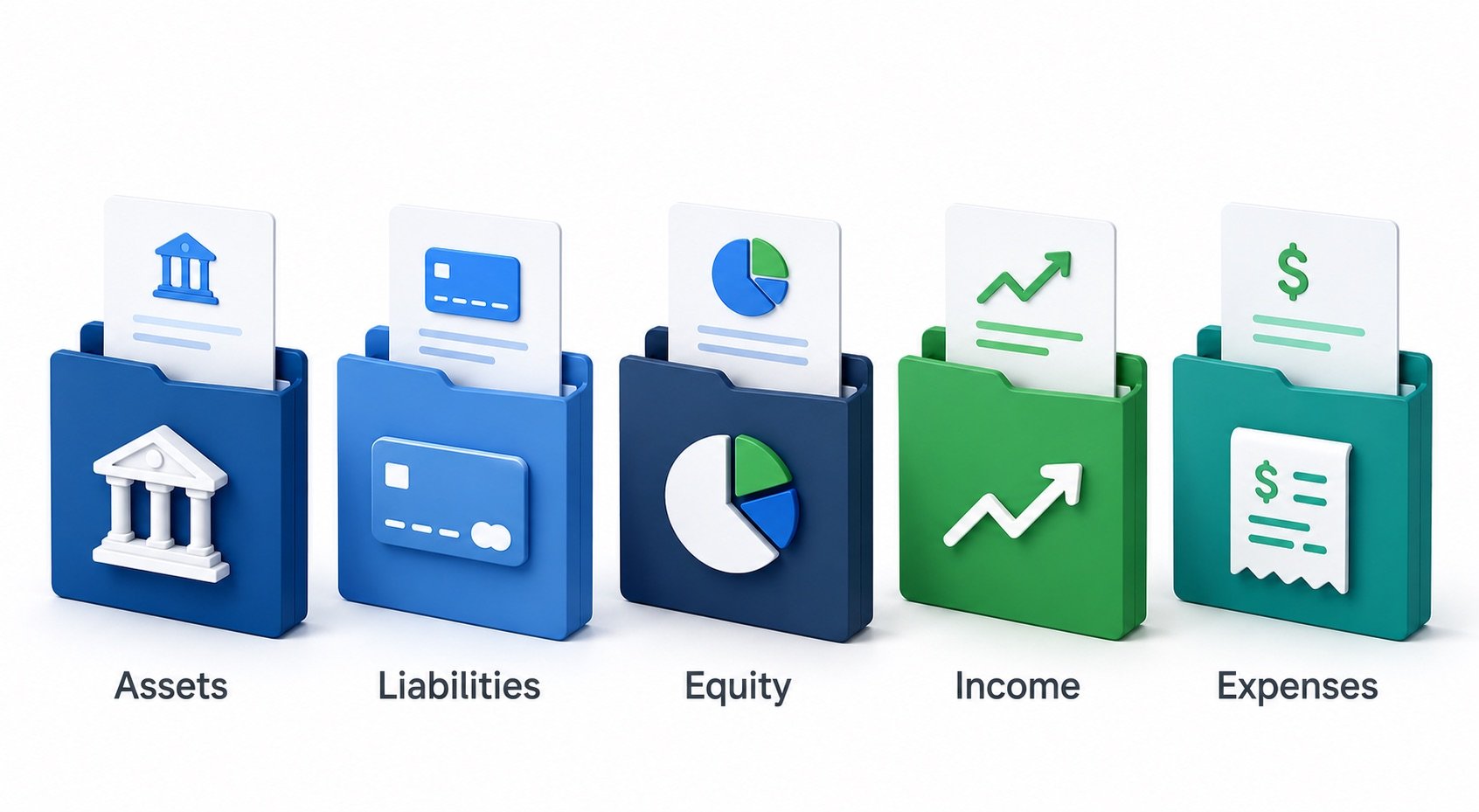
Every transaction in QuickBooks lands in one of these main buckets. Here is the simplest way to think about them:
| Account Type | Simple Question | QuickBooks Examples |
|---|---|---|
| Assets | What does the business own? | Checking, Savings, A/R, Undeposited Funds, Equipment, Inventory |
| Liabilities | What does the business owe? | Credit Cards, Loans, A/P, Sales Tax Payable |
| Equity | What is left for the owner(s)? | Owner’s Equity, Owner’s Draw, Retained Earnings |
| Income | What did the business earn? | Sales, Service Income, Product Income |
| Expenses | What did the business spend? | Rent, Advertising, Office Supplies, Software, Meals |
What about COGS?
In QuickBooks, you will usually also see Cost of Goods Sold (COGS) if you sell products, and sometimes for certain service businesses.
- COGS: direct costs tied to what you sell (inventory, materials, subcontractors in some setups)
- Expenses: operating costs (rent, admin software, office supplies)
A quick rule: if you would not have that cost without the sale, it often belongs in COGS.
A Simple Chart of Accounts Example
Here is a compact COA you might see for a small service business in QuickBooks Online. Your COA might have 30 accounts or 300. The goal is clarity.
Assets- Checking, Accounts Receivable (A/R), Undeposited Funds, Equipment
- Credit Card, Accounts Payable (A/P), Sales Tax Payable
- Owner’s Equity, Owner’s Draw, Retained Earnings
- Service Income
- Advertising & Marketing, Software Subscriptions, Rent, Office Supplies, Travel & Meals
Note: QuickBooks can also show Opening Balance Equity when balances get entered without proper detail. It is not automatically “bad,” but it usually means the books need cleanup.
Standard Chart of Accounts Numbering System
While QuickBooks allows you to use text names, professionals use a standard numbering system to keep accounts organized and ordered logically on reports. Here is the standard accounting structure:
- 1000s: Assets (e.g., 1010 Checking, 1200 Accounts Receivable)
- 2000s: Liabilities (e.g., 2010 Credit Cards, 2100 Accounts Payable)
- 3000s: Equity (e.g., 3010 Owner's Draw)
- 4000s: Income (e.g., 4010 Consulting Services)
- 5000s-8000s: Expenses (e.g., 6010 Advertising, 6200 Rent)
QuickBooks Tip: Account Type vs Detail Type
When you add an account in QuickBooks Online, it asks for:
- Account Type: The big bucket (Bank, Expense, Income, etc.)
- Detail Type: The subcategory that helps QuickBooks label it correctly.
Example: Account Type: Expenses | Detail Type: Advertising/Promotional | Name: Advertising. Choosing the right Account Type is what makes reports accurate.
How to Set Up Your Chart of Accounts in QuickBooks Online
Setting up your COA doesn't require an accounting degree. QuickBooks automatically creates a basic template for you based on your industry, but you will likely need to customize it as you grow. Here is how to access and manage it:
- Navigate to the List: Click on the Gear icon (⚙️) in the top right corner, then select Chart of Accounts under the "Your Company" column.
- Add a New Account: Click the green New button in the top right. Select the correct Account Type (the big bucket) and Detail Type, then give it a unique name (e.g., "Software Subscriptions").
- Clean Up Unused Accounts: If QuickBooks created accounts you don't use, click the small dropdown arrow next to "View Register" on that row and select Make Inactive. This hides the account so it doesn't clutter your bank feed.
Real-Life Examples: How Transactions Hit the COA
You do not need to learn debits and credits to understand this. In QuickBooks, each transaction affects at least two places. Money moves from one bucket to another.
Scenario 1: You buy a business laptop for $1,200
Action: You record an Expense, or the bank feed pulls it in.
Result: Equipment (Asset) increases; Checking (Asset) decreases. You traded cash for equipment.
Scenario 2: A client pays you $500 for a consulting session
Action: You receive a payment, or record a Sales Receipt.
Result: Checking (Asset) increases; Service Income (Income) increases.
Scenario 3: You pay $1,000 in office rent
Action: You record an Expense, or categorize it from the bank feed.
Result: Rent (Expense) increases; Checking (Asset) decreases.
Scenario 4: You send an invoice for $800 (not paid yet)
Action: Create and send an Invoice.
Result: Accounts Receivable (A/R) (Asset) increases; Service Income (Income) increases.
QuickBooks tracks that you are owed money even before cash hits your bank.
How Detailed Should Your QuickBooks Chart of Accounts Be?
Here is the sweet spot: Detailed enough to be useful, and simple enough to maintain. Start with broad categories. Add more detail only when it helps you make decisions.
Good reasons to add accounts:
- You want to see marketing spend by channel (Google Ads vs Social)
- You need to separate Contractors from Payroll
- You sell multiple services and want separate income accounts
Bad reasons: Creating an account for every tiny purchase or having five versions of the same thing (e.g., “Web Hosting” and “Website Hosting”).
The Secret to Organization: Parent vs. Sub-Accounts
One of the best features in QuickBooks is the ability to use Sub-accounts. This allows you to keep your main reporting view clean while still tracking detailed spending.
For example, instead of cluttering your main Profit and Loss report with five different utility expenses, you create one broad "Parent" account and nest the details underneath it:
- Parent Account: Utilities
- Sub-account: Electricity
- Sub-account: Water
- Sub-account: Internet
When you view your reports, you can collapse the "Utilities" row to see one clean, total number, or expand it to see exactly how much you spent on each category. Use sub-accounts when you want detail without the visual clutter.
Best Practices for a Clean QuickBooks COA
- Use consistent names (pick one: “Meals” vs “Meals & Entertainment”)
- Avoid too many Miscellaneous accounts
- Do not mix personal spending into business categories
- Keep tax sensitive categories clear (meals, travel, contractors, payroll)
- Review your COA yearly and merge duplicates
Common Mistakes QuickBooks Users Make
- Too many accounts too soon, which makes categorizing harder
- Using “Ask My Accountant” as a dumping ground, which hides problems until tax time
- Duplicate accounts, which splits your spending and ruins reporting
- Mixing COGS and Expenses, which makes profit margins look wrong
- Ignoring Undeposited Funds, which can cause deposits to double count
Messing up your COA is just one issue. Discover the other costly accounting mistakes small businesses make (and how to fix them).
FAQ (QuickBooks Edition)
Do I need a Chart of Accounts if I am a freelancer?
Yes. Even a small COA makes QuickBooks reports and taxes cleaner.
How many accounts should I have?
Most small businesses do well with a lean list, often 30 to 60. Bigger is not better. Clearer is better.
Can I change my COA later?
Yes. You can add, rename, or make accounts inactive in QuickBooks. Be cautious about major changes mid year.
Is the COA the same as Products and Services in QuickBooks?
No. Products and Services are what you sell. The Chart of Accounts is how QuickBooks organizes the financial results of those sales (income, expenses, assets, etc.).
What is the difference between the COA and the General Ledger?
The COA is the list of accounts. The General Ledger is the detailed transaction history inside those accounts.
What to Take Away
We believe that the Chart of Accounts is the difference between “I have QuickBooks” and “I understand my business.” You do not need a perfect system. You need a system you will actually use. A simple, clean COA makes the Banking feed easier, makes reports less confusing, and makes tax time less painful. Set it up once, keep it tidy, and in the future you will be genuinely grateful.